
Since e-Invoice began, many accountants spend the end of every month reconciling accounts. This guide explains how AI can help with e-Invoice reconciliation by shortening the work of matching bank statements to invoices, so your accountant can spend more time on collections and cash flow.
Why month-end reconciliation is so tiring
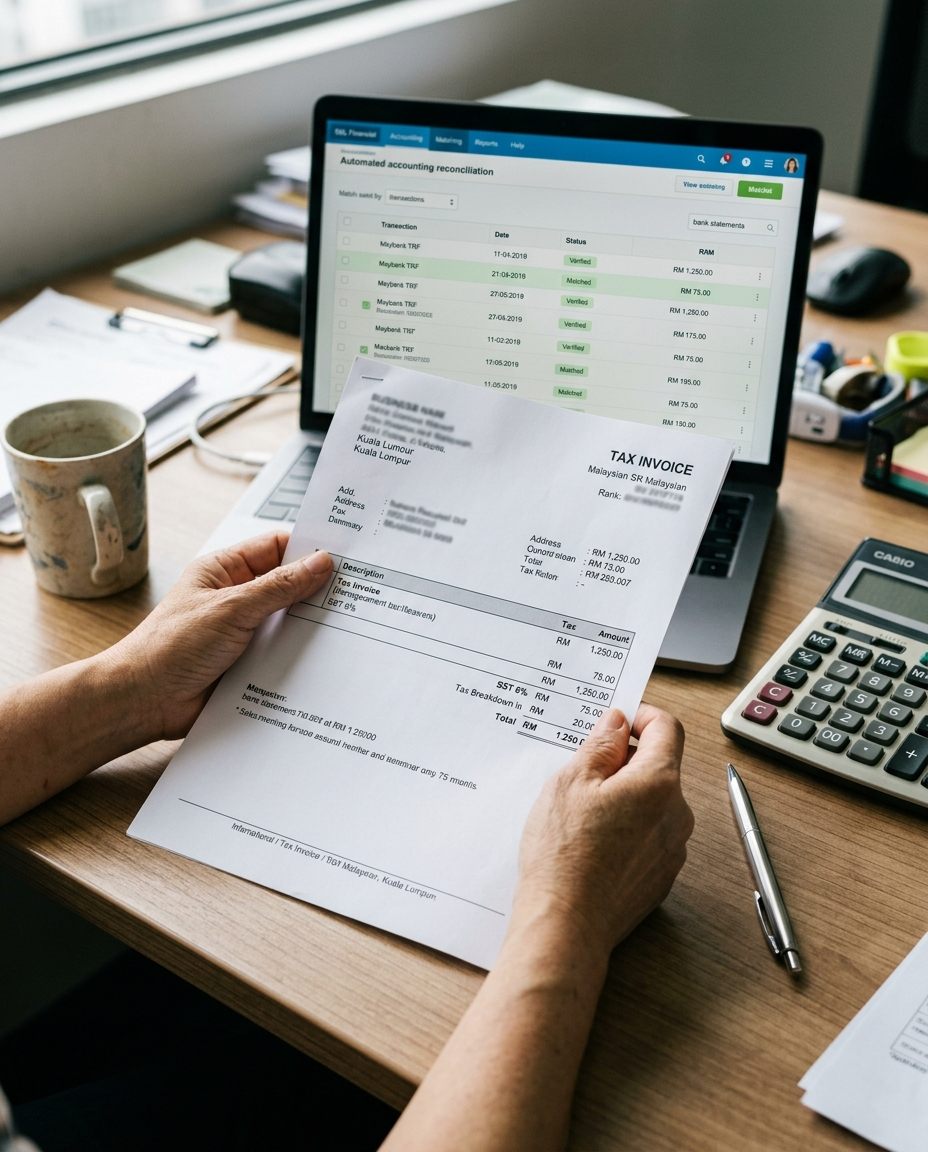
On the desk are supplier PDF invoices. On the screen is a bank statement exported from Maybank, CIMB or Public Bank. The accountant has to match line by line: amount, date, customer name and reference number. If a customer paid without writing the invoice number, or paid two invoices together, work stops while someone investigates.
e-Invoice requires fuller data, and details on the invoice such as the TIN and SST must agree with your records. That makes errors in reconciliation more serious than before. For specific penalties and submission rules, follow the latest official LHDN guidance.
The hidden cost of manual reconciliation
- Your accountant spends a lot of time on mechanical matching and has little time to chase overdue payments.
- Month-end rush makes it easier to miss a line or mistype a figure.
- A customer has already paid but the payment is not yet matched, so sales chases them again, which is awkward.
4 steps to automate e-Invoice reconciliation
- Export bank statements on a fixed schedule. Export a CSV from online banking daily or weekly (PDFs are more error-prone, so use CSV where you can) and place it in one Google Drive folder.
- Let AI read the invoices. Use a tool such as Parseur or Mindee to extract the supplier name, invoice number, total and tax from each invoice. Test it on your most common formats first.
- Match automatically. In Make.com, set rules: if the amount is the same, the date is within a reasonable range and the reference contains the invoice number, mark it as matched.
- Review what is left. For items that do not match, such as combined payments or unclear references, send a WhatsApp or email alert to the person in charge. Only write matched items into SQL Account, QuickBooks or Xero.
Things to watch for
Automatic matching only narrows down the work. It does not replace your accountant. At the start, spot-check the matches every month and make sure they agree before you trust them. The accounts still need to be confirmed by your accountant.
Bank statements and invoices are sensitive data. Before you use any tool, check where the data is stored and who can see it, and follow your company’s internal policy. Tool prices and free allowances change, so check the official pricing before you sign up.
Is it worth it?
If you have only a few dozen invoices a month, Excel with a few formulas is enough. This workflow is worth setting up when you have hundreds of bank lines a month and many payments with no reference. Start with one bank account and one type of customer, and add more once it runs smoothly.
Frequently asked questions
Do I need to know how to code?
No, but expect a few days to get used to the Make.com setup.
If my company already has accounting software, do I still need these tools?
First check whether your software has automatic bank matching. Many accounting packages already do, and you may not need anything extra.
Does this meet e-Invoice requirements?
These tools only help you organise reconciliation. For e-Invoice submission and rules, confirm with your accountant or the official LHDN guidance.
Sources: the official LHDN website (hasil.gov.my) guidance on e-Invoice, and the official websites of the tools mentioned. This is general information, not tax or accounting advice.